
DBI Switch — Complete Guide to Features, Installation, and Use
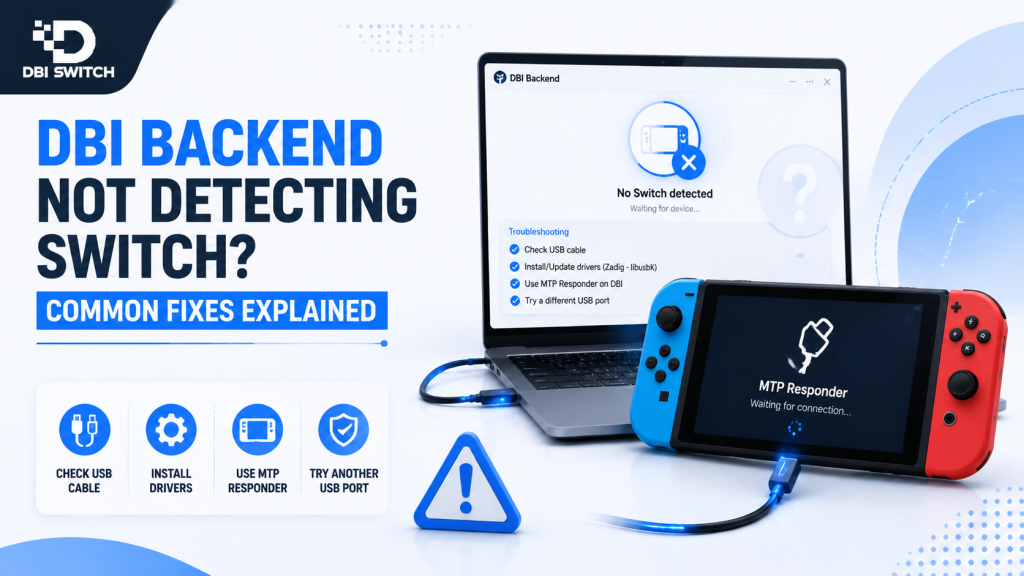
If the DBI Backend is not detecting your Nintendo Switch, it can prevent you from installing games, transferring files, or managing your console through a USB connection. This issue is commonly caused by incorrect USB drivers, unsupported cables, backend configuration problems, or communication errors between the PC and the Switch.
In this guide, we’ll explain the most common reasons why the DBI Backend fails to detect your Switch and provide step-by-step solutions to fix the problem. Whether you’re setting up DBI for the first time or troubleshooting a connection issue, these fixes will help you restore a stable connection and resume managing your files with confidence.
What Is DBI Switch?
DBI Switch is a homebrew application that helps manage content and files on a modified Nintendo Switch. It allows users to perform tasks such as file transfers, package installations, storage management, and title maintenance.
DBI is primarily used by users who already have a working custom firmware setup and need a reliable tool to manage their Switch environment.
Purpose and Intended Use Cases
The main purpose of DBI Switch is to simplify content management by consolidating multiple functions into a single application.
Common use cases include:
- Managing supported installation packages.
- Transferring files between a PC and Switch.
- Browsing microSD and storage locations.
- Checking installed titles, updates, and DLC.
- Removing unwanted or incomplete content.
DBI is intended for experienced users familiar with homebrew, sysNAND, EmuMMC, and Switch file management.
How DBI Switch Compares to Similar Tools
DBI provides a broader management interface compared to many single-purpose Switch utilities. While some tools focus mainly on installation or file transfer, DBI combines several tasks in one application.
| Tool type | Main focus |
| DBI Switch | Installation, transfers, storage management, and content maintenance |
| Basic installers | Mainly focused on installing packages |
| File managers | Mainly used for browsing and moving files |
DBI is often preferred by users who want fewer separate tools for regular Switch content-management tasks.
Key Features and Capabilities
DBI Switch combines several management functions into one Nintendo Switch guide homebrew application. It focuses on file transfers, content installation, storage management, and system organization.
Core Features at a Glance
DBI provides features that help users manage their not detecting Switch content more efficiently. Its main capabilities include file browsing, MTP transfers, installation management, storage checks, and information about installed titles.
Users can access different tools from one interface instead of relying on multiple separate applications.
Supported File Types and Operations
DBI supports common Nintendo Switch package formats and provides tools for handling them.
Supported operations include:
- Installing supported package files.
- Transferring files through MTP Responder.
- Browsing microSD and storage locations.
- Managing installed titles, updates, and DLC.
- Checking content details and storage usage.
Common supported file formats include NSP, NSZ, XCI, and XCZ packages.
Performance Considerations and Limitations
DBI performance depends on factors such as microSD card speed, USB connection quality, storage space, and file condition.
Slow cards, damaged files, unstable USB cables, or interrupted transfers can cause installation delays or errors. DBI also requires a compatible custom firmware environment and cannot work on a normal unmodified Switch.
Keeping enough free storage, using reliable hardware, and maintaining backups helps provide a more stable experience.
Compatibility and System Requirements
DBI Switch requires a Nintendo Switch system that can already run a compatible custom firmware environment. The application depends on the installed firmware, custom firmware version, and homebrew setup working together correctly.
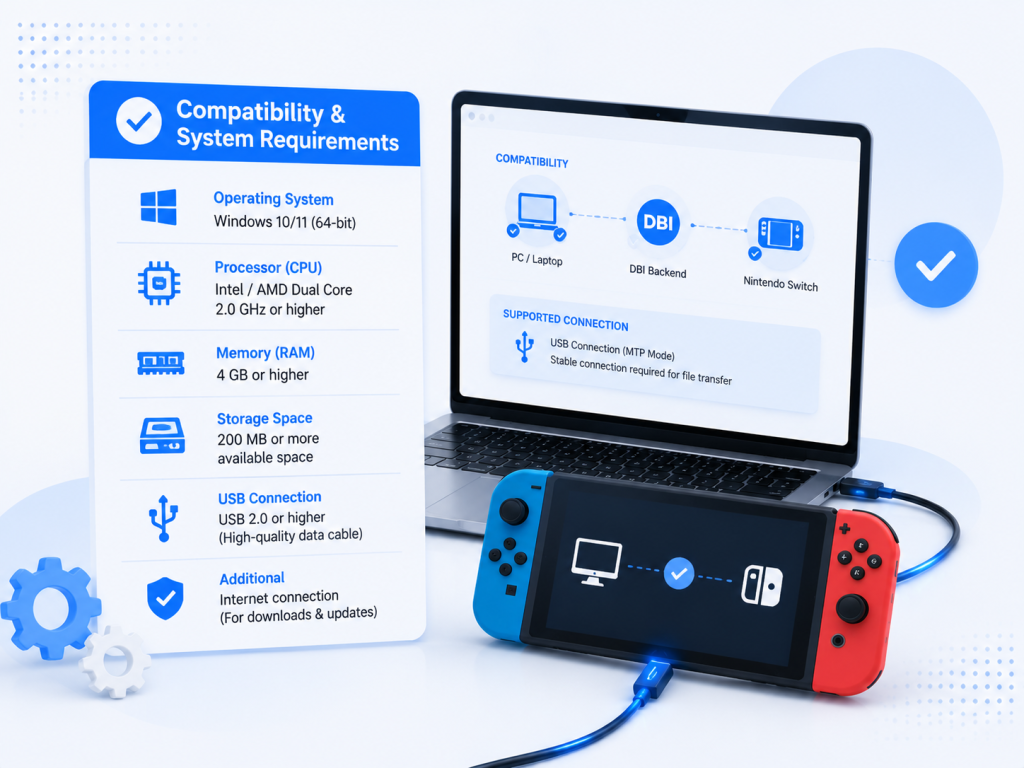
A stable microSD card, enough storage space, and a reliable USB connection are also recommended for smooth file transfers and installations.
Supported Consoles/Firmware and OS Versions
DBI can run on Nintendo Switch consoles that support a working homebrew environment, including original Switch models, Switch Lite, and Switch OLED systems with compatible custom firmware.
Compatibility depends on:
- Nintendo Switch system firmware version.
- Custom firmware version, such as Atmosphère.
- Homebrew Menu availability.
- Installed DBI release version.
DBI does not run on a standard, unmodified Switch and does not provide custom firmware support on its own.
Required Dependencies and Tools
A basic DBI setup requires a few essential components:
- A Nintendo Switch with compatible custom firmware.
- Homebrew Menu access.
- The DBI application files.
- A properly formatted microSD card.
- A computer with a data-capable USB-C cable for MTP transfers.
Optional tools may include a microSD card reader, backup utilities, and configuration files for advanced settings. Keeping these components up to date helps prevent compatibility and installation issues.
Preparing to Install
Before installing DBI, prepare the Switch environment and storage to reduce the risk of errors. A clean setup, reliable files, and proper backups help ensure a smoother installation process.
Backup and Safety Checklist
Before making changes, create backups of important data and confirm that the current custom firmware setup is working correctly.
Check that:
- Important files on the microSD card are backed up.
- Save data and configuration files are stored safely.
- Enough storage space is available.
- The Switch battery level is sufficient.
- The correct sysNAND or EmuMMC environment is selected.
Avoid removing or changing system files unless you understand their purpose.
Choosing the Correct Release for Your Setup
Choose a DBI release that matches your language preference, custom firmware environment, and required features. Official releases are usually recommended because they provide better stability and tested updates.
Before replacing an older version, review the release notes and keep a backup of the current DBI files and configuration settings.
Installation and Initial Setup
DBI installation is completed by placing the application files on the Switch microSD card and launching it through the Homebrew Menu. A correct file structure helps prevent startup issues.
Step-by-Step Standard Installation
Follow these basic steps to install DBI:
- Download the required DBI release package.
- Extract the files on your computer.
- Open the switch folder on the microSD card.
- Create a DBI folder if it does not exist.
- Copy DBI.nro and required files into:
sdmc:/switch/DBI/
- Safely remove the microSD card and insert it back into the Switch.
- Boot into the custom firmware environment.
- Open the Homebrew Menu and launch DBI.
First-Run Configuration and Verifying Installation
When DBI starts for the first time, confirm that it correctly detects the microSD card and available storage locations.
Check that the main menu loads without errors and that features such as file browsing, storage information, and MTP options are available.
If DBI does not appear or fails to start, verify the folder path, reinstall clean files, and confirm that the Homebrew environment is working properly.
Using DBI Switch: User Guide
DBI Switch provides a simple interface for managing installations, file transfers, storage, and installed content. Users can complete most tasks through the main menu without using multiple separate tools.
Basic Workflows and Common Tasks
Common DBI workflows include transferring files from a PC, installing supported packages, browsing the microSD card, and checking installed titles.
Typical tasks involve launching the MTP Responder for USB transfers, selecting files from storage, monitoring installation progress, and reviewing installed content through the management options.
DBI also allows users to check storage availability and organize content between supported locations.
Advanced Usage and Power-User Tips
Advanced users can customize DBI settings, manage larger content libraries, and configure specific workflows.
For better performance, keep the microSD card organized, maintain free storage space, back up configuration files, and avoid interrupting transfers or installations.
Power users should also review release notes before updating DBI to ensure compatibility with their current custom firmware setup.
Troubleshooting and Common Issues
DBI Switch problems are usually caused by incorrect file placement, storage issues, incompatible versions, or interrupted operations. Checking the setup and error details can help identify the cause quickly.
Diagnosing Errors and Common Fixes
If DBI does not launch, check that the application files are placed correctly on the microSD card and that the Homebrew environment is working properly.
For installation or transfer problems, verify available storage, check the file format, reconnect USB connections, and test the microSD card for errors. Updating DBI or reinstalling clean files can fix issues caused by damaged application files.
Recovery Steps and Rollback Procedures
Before updating DBI or changing advanced settings, keep a backup of the current files and configuration. If a new version causes problems, restore the previous working DBI files.
For configuration errors, replace the modified settings file with a backup or return to default settings. Avoid deleting important storage data during recovery unless you have confirmed it is safe to remove.
Updating and Uninstalling
Keeping DBI updated can provide bug fixes, improvements, and better compatibility with newer custom firmware environments. Updates should be performed carefully to avoid losing settings or creating file conflicts.
How to Update Safely
Before updating DBI, create a backup of the current DBI folder and configuration files. Download the new release from a trusted source and compare the version information with your current setup.
Replace the old DBI application files with the new ones while keeping your custom configuration file if needed. After updating, launch DBI and confirm that menus, storage access, and required features work correctly.
Avoid updating multiple system components at the same time. Testing DBI after each change makes it easier to identify compatibility issues.
Frequently Asked Questions
Is DBI Switch Safe to Use on Nintendo Switch?
DBI Switch is generally safe when it is downloaded from a trusted source and used with a properly configured custom firmware environment. Most issues come from incorrect file handling, interrupted transfers, or changing system settings without backups.
Users should keep important files backed up and confirm that their active sysNAND or EmuMMC setup is configured before managing content.
Can DBI Switch Work With Different Switch Firmware Versions?
DBI compatibility depends on the combination of Nintendo Switch firmware, custom firmware version, Homebrew Menu, and the DBI release being used.
Different firmware versions may require updated custom firmware components. Before updating the console, check that the current DBI version and homebrew environment support the new setup.
Why Is DBI Switch Failing During Installation?
Installation failures usually occur due to damaged files, insufficient storage, unsupported formats, unstable USB connections, or microSD card issues.
Check that the package is complete, confirm available space, reconnect the USB cable if needed, and verify that the correct storage location is selected. Reinstalling clean DBI files can also fix problems caused by a damaged application setup.
Conclusion
DBI Switch is a versatile homebrew utility that simplifies installation, file transfers, storage management, and content organization on compatible Nintendo Switch systems.
With proper preparation, regular backups, and a stable custom firmware setup, DBI provides a reliable workflow for managing supported files and applications. Keeping DBI up to date and using safe practices help maintain a smoother experience.
Latest Post:
- How to Use DBI Installer on Nintendo Switch: Complete Beginner’s Guide
- Is DBI Safe for Nintendo Switch? Risks, Safety Tips, and What to Know
- How to Install DBI on Nintendo Switch: Complete Setup Guide
- Domain Lookup: Check a Domain Before You Use It
- How to Install Switch Games Using DBI: Safe and Legal Guide for Modded Nintendo Switch
