
DBI (Switch): Complete Guide to Features, Installation, and Releases
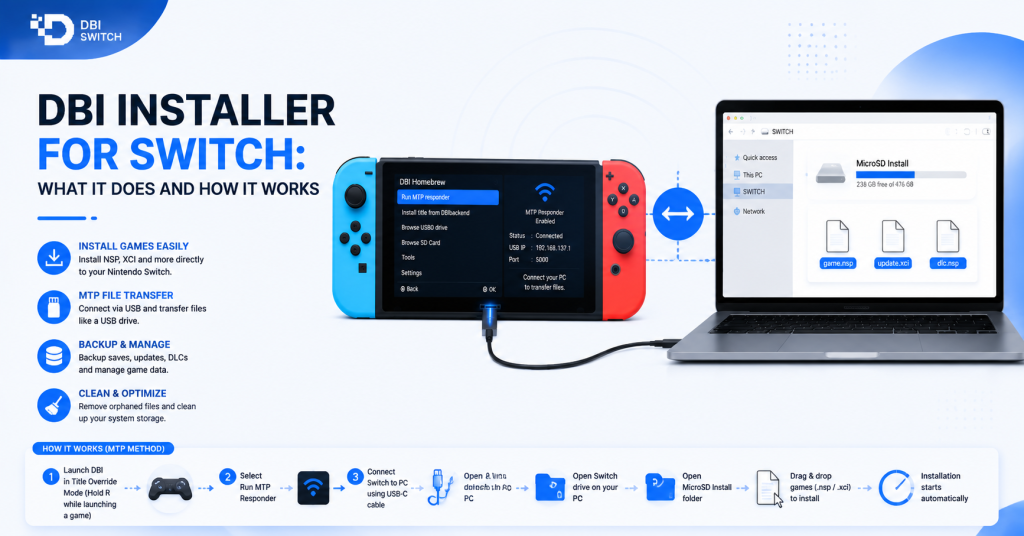
The DBI Installer is a versatile homebrew utility for the Nintendo Switch that allows users to install games, updates, DLC, and other content directly from various sources. It simplifies the installation process by supporting USB, SD card, MTP, and network transfers, making it one of the most convenient tools for managing Switch content.
In this guide, you’ll learn what the DBI Installer does, how it works, and the different installation methods it supports. Whether you’re new to DBI or looking to better understand its features, this article explains how the installer helps streamline content management while ensuring a faster and more efficient workflow on your Nintendo Switch.
What Is DBI and Who Should Use It
DBI is a homebrew utility for Nintendo Switch that helps users manage installed content, files, and system-related tasks through a simple interface. It is mainly used by Switch users running custom firmware who need greater control over their console data.
The tool provides features for installing, transferring, and managing Switch files without depending on multiple separate applications. It is designed to make common maintenance tasks easier for users who work with custom Switch environments.
DBI is mainly useful for advanced Switch users who need a reliable way to organize their installed content, manage storage, and handle file operations directly from the console.
Core Purpose and Typical Use Cases
DBI is designed to simplify content management tasks on Nintendo Switch systems running custom firmware. Its main purpose is to provide users with a single tool for handling installations, file transfers, backups, and storage management.
Common use cases of DBI include installing supported software packages, managing installed titles, transferring files between a PC and Switch, and checking system content. It is often used by advanced users who maintain large game libraries or regularly work with homebrew applications.
DBI can also help with troubleshooting by providing detailed information about installed content and storage locations. This makes it useful for users who need more control over their Switch environment.
Supported Switch Models and Compatibility
DBI is designed for Nintendo Switch consoles that support homebrew environments through custom firmware. Compatibility depends mainly on the console model, firmware setup, and the homebrew environment being used.
It generally supports commonly used Switch models, including original Nintendo Switch units and compatible hardware revisions. However, users should verify their specific console compatibility and custom firmware requirements before installation.
DBI does not add homebrew support to unsupported consoles. The Switch must already have a suitable homebrew setup before DBI can be installed and used.
Key Features and Capabilities
DBI provides a range of tools that help Nintendo Switch homebrew users manage files, installed content, and system data more efficiently. Its features are focused on improving control over storage operations, software management, and maintenance tasks.
The application combines multiple useful functions into a single interface, reducing the need for separate tools for common Switch management activities.
Main Functions and User Interface Overview
DBI includes features for installing content, browsing files, managing installed titles, and transferring data between devices. It allows users to perform many tasks directly on the Switch, without always needing a computer.
The user interface is designed around simple navigation, with different sections for installation, file management, title information, and system utilities. This makes it easier for users to find the required tools and complete common operations.
Key functions include:
- Managing installed Switch content and related files.
- Installing supported packages through different transfer methods.
- Browsing internal storage and SD card contents.
- Checking title information and available storage space.
- Performing file transfer operations between the switch and the PC.
Limitations and Known Constraints
Although DBI is a powerful management tool, it has some limitations. It requires a compatible homebrew environment and cannot be used on a standard Nintendo Switch without the necessary setup.
Some advanced features may require technical knowledge, especially when managing system files or making changes to installed content. Incorrect file handling can cause problems, so users should understand each function before making changes.
DBI also depends on compatibility with the current Switch firmware and homebrew ecosystem. Users should check available releases and updates to ensure the tool works correctly with their setup.
Downloads, Releases, and Changelog
DBI releases are updated over time to improve compatibility, fix issues, and introduce new features. Users should download DBI from trusted sources and review release information before installing a new version.
The changelog provides details about changes made in each release, including improvements, bug fixes, and compatibility updates. Checking release notes helps users understand what has changed and whether an update is useful for their setup.
Choosing a Stable or Legacy Release
The stable release is usually the best choice for most users because it contains tested features and fixes intended for general use. Users who want the latest improvements should choose the newest stable version available.
Legacy releases may be useful for specific setups where older versions are required for compatibility. Some users may prefer an older release if a newer version causes unexpected issues with their existing configuration.
Before switching versions, users should check the release notes and keep a backup of important files to avoid losing settings or installed data.
Verifying Downloads and Checksums
Verifying downloads helps ensure that the DBI package has not been corrupted or modified during the download process. Some releases provide checksums that allow users to compare the downloaded file against the original release.
A matching checksum confirms that the file is complete and unchanged. If the checksum does not match, users should download the package again from a trusted source.
Checking file integrity is a recommended step before installing any homebrew application, especially when managing important Switch data.
Installation Prerequisites
Before installing DBI on a Nintendo Switch, users need to ensure the system environment is compatible. The required setup includes a supported custom firmware configuration, a working homebrew environment, and properly prepared storage.
Preparing these requirements in advance helps prevent installation problems and ensures that DBI can run correctly after setup.
Required Switch Firmware, Homebrew Launcher, and Tools
DBI requires a Nintendo Switch system that already supports homebrew applications. Users need a compatible custom firmware environment and a working homebrew launcher to run DBI.
The homebrew launcher provides the platform for starting DBI and other custom applications on the Switch. Users should ensure that their firmware and homebrew setup are properly configured before installing the tool.
Additional tools may be required depending on the installation method, such as a computer for transferring files and a USB connection for certain operations.
Preparing Your SD Card and Backups
A properly prepared SD card is important for a smooth DBI installation. Users should ensure that the card has enough available storage space and is formatted correctly for their Switch setup.
Before making any changes, it is recommended to create backups of important files. Backing up the SD card contents, configuration files, and other important data helps protect against accidental data loss.
Keeping a backup also makes it easier to restore the previous setup if any installation or configuration issue occurs.
Step-by-Step Installation Guide
Installing DBI involves moving the application files to the correct location on the Switch SD card and launching it through the homebrew environment. The process is similar for most releases, but users should choose the version that matches their setup.
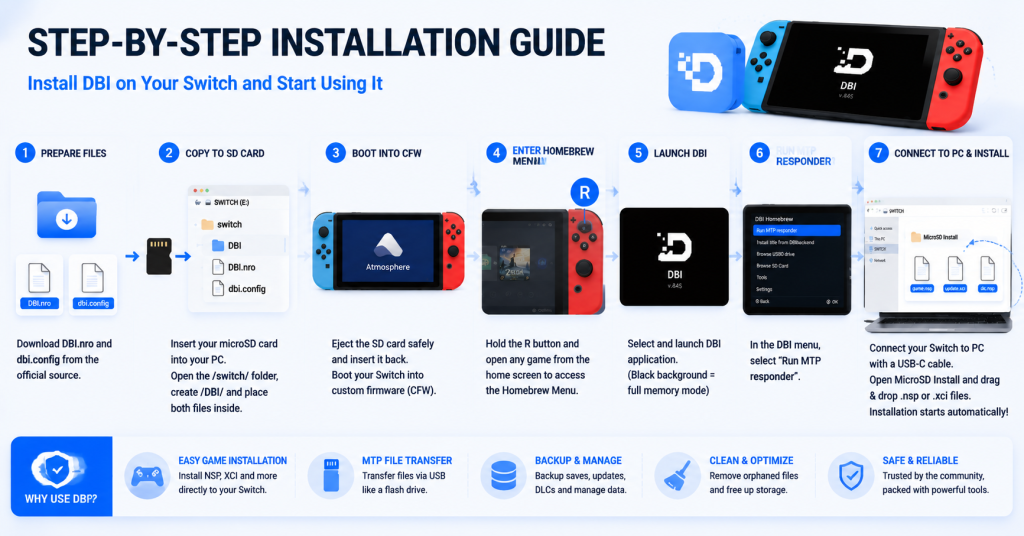
Before installation, it is recommended to create a backup of the existing files and confirm that the required Homebrew tools are already installed and working.
Installing the Latest Release from a Package
To install the latest DBI release, download the newest available package and extract its files. Copy the required files to the appropriate folders on the Switch SD card.
After transferring the files, insert the SD card back into the console and open the homebrew launcher. DBI should appear in the available applications and can be started from there.
Using the latest release helps users get recent improvements, bug fixes, and better compatibility with current Switch environments.
Installing an Older or Specific Release
Installing an older DBI version follows the same basic process but requires downloading the selected release rather than the latest package.
Older versions may be useful when a specific setup depends on previous features or compatibility. Users should carefully remove or replace existing DBI files to avoid conflicts between versions.
Keeping a backup of the current installation allows users to restore the previous version if the selected release does not work correctly.
First-Time Setup and Configuration (Image)
After installing DBI, the first-time setup helps users understand the interface and prepare the application for regular use. A basic configuration ensures that storage access, file management, and other functions work correctly.
Before performing major tasks, users should explore the available options and confirm that DBI is detecting the required files and storage locations.
Initial Launch, Permissions, and Basic Settings
When launching DBI Switch for the first time, users should check that the application opens correctly through the homebrew environment. The tool may require access to SD card storage and system locations to manage files properly.
Important first-time checks include:
- Confirming DBI can access the SD card.
- Checking available storage space.
- Reviewing basic application settings.
- Ensuring the homebrew environment is working correctly.
Keeping default settings is usually suitable for new users. Advanced options should only be changed when the user understands their purpose.
Common Workflows and Quick Tasks
DBI is mainly used for common Switch management tasks that can be completed from its main interface. Users can quickly access different tools for managing content and files.
Typical workflows include:
- Installing supported content packages.
- Browsing and managing files on storage devices.
- Transferring files between a PC and Switch.
- Checking installed titles and related information.
- Organizing data for easier maintenance.
Learning these basic workflows helps users use DBI more efficiently and reduces the chance of making incorrect changes to important files.
Advanced Usage and Configuration
DBI includes advanced features that allow experienced users to manage their Switch environment with more control. These options are useful for users who regularly handle large amounts of data, maintain multiple setups, or need more detailed management tools.
Advanced configuration should be used carefully because incorrect changes can affect installed content or stored data.
Customization, Advanced Options, and Profiles
DBI provides additional options that help users adjust the application according to their workflow. Advanced users can explore available settings to improve file management and make frequently used tasks easier.
Common customization areas include:
- Adjusting application preferences.
- Managing different storage locations.
- Using advanced tools for specific tasks.
- Creating a setup that matches personal requirements.
Profiles and saved configurations can help users maintain consistent settings across different Switch setups.
Import, Export, Backups, and Migrations
DBI can assist users in managing data transfers, backups, and migrations. These features are useful when moving files between storage devices or preparing a new setup.
Common operations include:
- Importing supported files for installation or management.
- Exporting data for backup purposes.
- Moving content between different storage locations.
- Restoring files when switching setups.
Regular backups before major changes are recommended to protect important data and make recovery easier if problems occur.
Troubleshooting and Common Issues
Although DBI is designed to work reliably, users may sometimes face installation errors, compatibility issues, or unexpected behavior. Most problems can be resolved by checking the setup, verifying files, and reviewing the information available in the application.
Understanding common errors and basic troubleshooting steps helps users identify problems quickly and restore normal operation.
Error Messages, Logs, and Diagnostic Steps
When dbi-installer-for-switch encounters an issue, error messages and logs can provide useful information about the cause. Users should review these details before making changes to their setup.
Common diagnostic steps include:
- Check the displayed error message carefully.
- Verifying that required files are present.
- Confirming firmware and homebrew compatibility.
- Reviewing logs for additional details.
- Testing with a clean or updated setup.
These steps help narrow down whether the issue is related to files, configuration, storage, or compatibility.
Fixes for Common Installation and Runtime Problems
Installation and runtime problems are often caused by incorrect file placement, outdated versions, or configuration conflicts. Checking the basic setup can solve many common issues.
Common fixes include:
- Reinstalling DBI files from a trusted release.
- Updating the homebrew environment.
- Checking SD card health and available space.
- Restoring files from a backup if needed.
- Using a compatible DBI version for the current setup.
If problems persist, users should avoid making arbitrary changes and identify the exact cause before modifying any important system files.
Frequently Asked Questions About DBI
Is DBI Safe to Use on Nintendo Switch?
DBI is generally considered safe when used correctly in a properly configured homebrew environment. It is designed to help users manage files, installations, and storage tasks without unnecessary system changes.
However, users should always create backups before making major changes and avoid modifying files they do not understand. Using incorrect files or settings can lead to installation problems or data loss.
Which Nintendo Switch Models Support DBI?
DBI works on Nintendo Switch consoles that support a compatible homebrew environment. Support depends on the console model, firmware version, and custom firmware setup, not just the hardware model.
Users should confirm that their Switch already supports homebrew before installing DBI. Stock consoles without a suitable setup cannot run DBI.
Why Is DBI Not Detecting Files or USB Connections?
DBI may fail to detect files or USB connections due to incorrect file placement, connection issues, or compatibility problems. Carefully checking the setup can help identify the cause.
Common solutions include:
Confirm that files are placed in the correct SD card folders.
Checking the USB cable and connection settings.
Restart the Switch and reconnect the devices.
Updating DBI and related homebrew tools.
Verifying that storage devices are working properly.
If the issue continues, reviewing logs and testing with a different setup can help locate the problem.
Latest Post:
- How to Use DBI Installer on Nintendo Switch: Complete Beginner’s Guide
- Is DBI Safe for Nintendo Switch? Risks, Safety Tips, and What to Know
- How to Install DBI on Nintendo Switch: Complete Setup Guide
- Domain Lookup: Check a Domain Before You Use It
- How to Install Switch Games Using DBI: Safe and Legal Guide for Modded Nintendo Switch
