
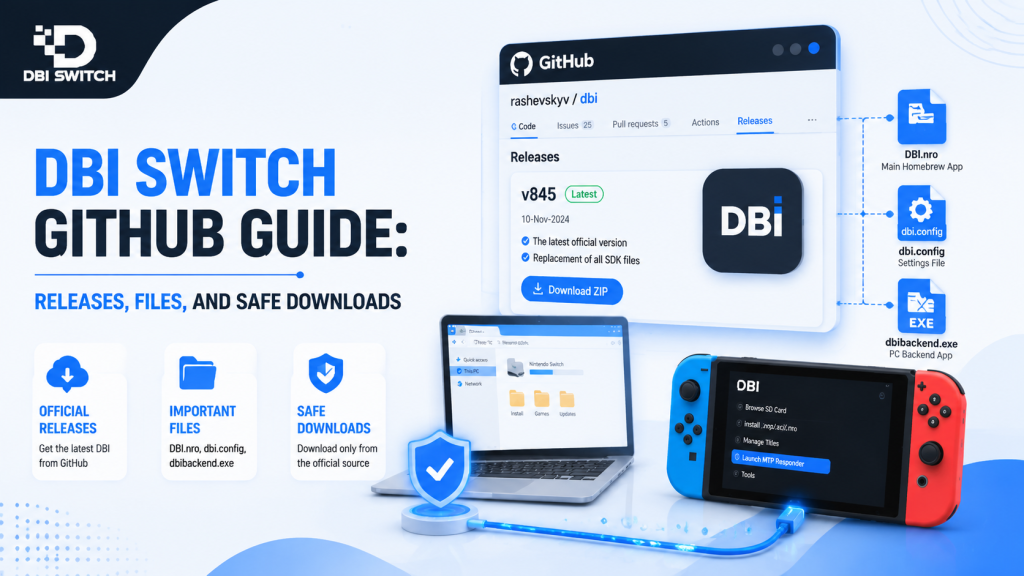
DBI for Nintendo Switch — Complete User Guide
DBI is a Nintendo Switch homebrew utility designed for users running compatible custom firmware. It combines installation tools, file management features, storage controls, and transfer options into a single application.
This guide explains what DBI does, how it works, and how users can set it up and use its main features effectively.
Overview
DBI provides a central interface for managing supported content and files on a modified Nintendo Switch. It helps users perform common tasks such as transferring files from a PC, installing supported packages, checking storage, and managing installed applications.
The tool primarily focuses on simplifying Switch content management by reducing the need for multiple separate utilities.
What DBI Is and Who It’s For
DBI is a homebrew application created for Nintendo Switch systems with a working custom firmware environment. It is commonly used by users who need better control over file transfers, installations, and storage management.
DBI is suitable for users familiar with concepts such as custom firmware, Homebrew Menu, sysNAND, and EmuMMC. It is not designed for standard unmodified Switch consoles.
Core Features at a Glance
DBI includes several useful features for managing Switch content:
- Installing supported package files.
- Transferring files through MTP and USB connections.
- Browsing microSD and storage locations.
- Viewing installed titles, updates, and DLC.
- Managing storage usage and installed content.
- Checking files and installation status.
These features make DBI a practical all-in-one tool for users who want a simple way to handle common Switch management tasks.
Installation
Installing DBI requires a Nintendo Switch with an existing homebrew environment. The process involves preparing the required files, placing them on the microSD card, and launching DBI through the Homebrew Menu.
Requirements and Prerequisites (Firmware, SD/USB, Dependencies)
Before installing DBI, make sure the Switch setup includes a compatible custom firmware environment and the required hardware.
Required components include:
- A Nintendo Switch with working custom firmware.
- Homebrew Menu access.
- A reliable microSD card with enough free space.
- A computer or microSD card reader.
- A data-capable USB-C cable for MTP transfers.
- The correct DBI release files.
Users should back up important microSD data before making changes and confirm whether they are using sysNAND or EmuMMC.
Step-by-Step Install on Switch
Follow these steps to install DBI:
- Download the latest DBI release package from a trusted source.
- Extract the files on a computer.
- Open the microSD card and locate the switch folder.
- Create a folder named DBI.
- Copy the DBI application files into:
sdmc:/switch/DBI/
- Safely eject the microSD card and insert it into the Switch.
- Boot the console into the custom firmware environment.
- Open the Homebrew Menu.
- Select DBI and launch the application.
After the first launch, confirm that DBI detects the microSD card and available storage locations. If the application does not appear, check the folder structure and file placement.
Quick Start
After installing DBI, the first launch helps confirm that the application is working correctly with the current Switch environment. A quick setup check ensures storage, menus, and transfer features are available.
First Run: Basic Setup and Configuration
Launch DBI from the Homebrew Menu while running the required custom firmware environment. On startup, check that the application loads without errors and detects available storage locations.
Review the basic settings and confirm that the microSD card, installation paths, and MTP options are working correctly. Most users can keep the default configuration unless a specific workflow requires changes.
Verifying Installation and Common Post-Install Checks
After launching DBI successfully, verify that:
- The main menu opens normally.
- The microSD card is detected.
- Storage information appears correctly.
- MTP Responder can start when needed.
- File browsing options work without errors.
If any feature fails, check the DBI files, the custom firmware setup, and the condition of the microSD card before reinstalling the application.
Using DBI
DBI provides a menu-based interface for managing files, storage, installations, and connected devices. The layout is designed to keep common tasks accessible from the main screen.
Interface Walkthrough
An interface screenshot should highlight the DBI main menu, storage information, installation options, MTP Responder, and browsing tools.
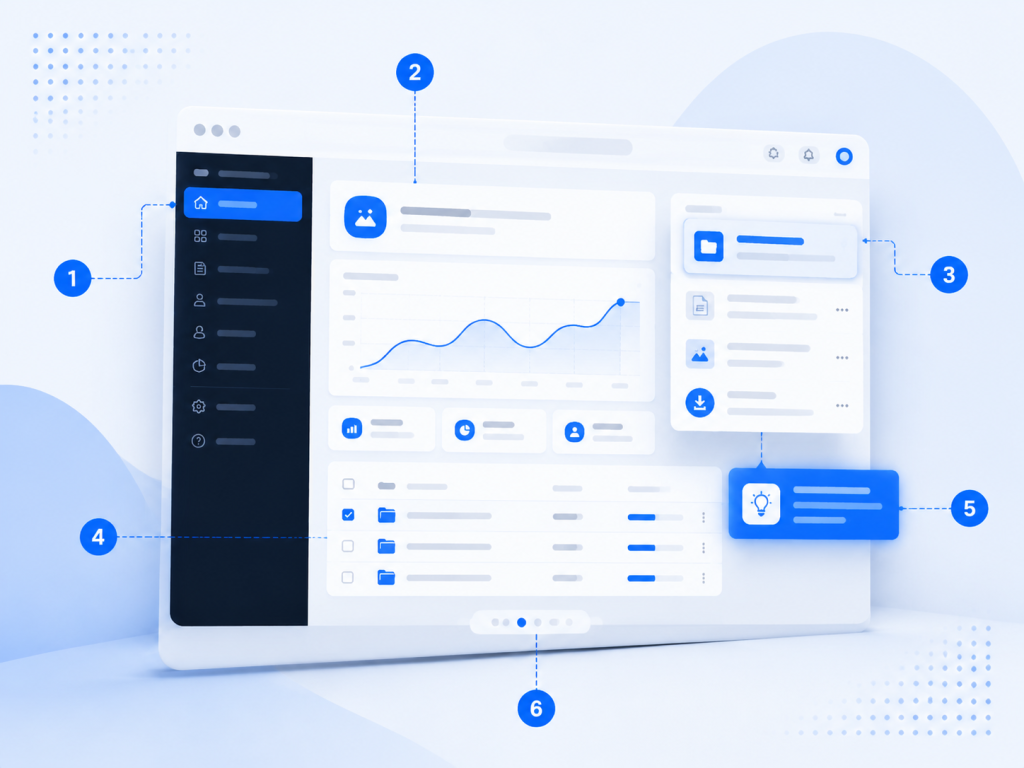
A visual walkthrough can help users locate key features before performing file transfers or content management tasks.
Main Menu, Navigation, and Buttons
The DBI main menu provides access to different management functions. Users can move through options using the Switch controls and select actions with the confirmation buttons.
Common navigation actions include:
- Opening menus with A.
- Returning to previous screens with B.
- Moving through lists with directional buttons.
- Selecting files, storage locations, or management options.
The menu structure may vary slightly depending on the installed DBI version.
Browsing SD Card and External Drives
DBI allows users to browse files stored on the microSD card and supported external storage devices. The file browser helps locate installation packages, folders, and other managed content.
When browsing storage, users can check available space, open folders, and select supported files for further actions. Always verify the correct storage location before making changes.
Browsing and Managing Installed Applications
DBI allows users to view installed applications, updates, and related content from the Switch storage. The installed-title browser provides information about available content and helps manage storage usage.
Users can review installed titles, check content details, and remove unnecessary items when additional storage space is needed.
Installing Titles from DBIbackend and Other Sources
DBI supports installing compatible files through different transfer methods, including MTP connections and supported external sources. DBIbackend can be used as an additional method for managing installations through a PC connection.
Before installing, verify that the file is complete, supported, and stored in the correct location. Always use content from trusted and authorized sources.
Tools & Utilities
DBI includes several utilities that make file management and maintenance easier. These tools help users transfer data, inspect storage, and manage installed content from one interface.
MTP Features: Mounting Installed Titles and File Transfer
The MTP Responder allows the Switch to connect with a PC like a storage device. Users can transfer files without removing the microSD card from the console.
MTP features can be used for:
- Moving files between PC and Switch.
- Accessing installation folders.
- Managing supported content transfers.
- Browsing selected storage locations.
A stable USB connection and data-capable cable are recommended for reliable transfers.
Running the MTP Responder and Common MTP Workflows
DBI’s MTP Responder allows the Switch to connect directly with a PC for file management tasks. After starting MTP Responder in DBI, the console appears as a connected device on the computer.
Common workflows include transferring files, accessing installation folders, and moving supported content without removing the microSD card. A reliable USB cable and stable connection help prevent transfer errors.
Backup, Restore and Save-Management Tools
DBI includes tools that help users manage backups and maintain important data. These features can assist with reviewing files, handling saves, and restoring supported content when needed.
Before making major changes, back up important data and verify that the correct storage location is selected to avoid accidental changes.
Configuration
DBI provides configuration options for adjusting application behavior, storage access, transfer settings, and other preferences. Most users can use the default settings, while advanced users can customize options based on their workflow.
dbi.config Structure and Key Examples (Image)
The dbi.config file controls advanced DBI behavior and allows users to customize application settings. It is mainly useful for users who want to adjust menu layout, transfer behavior, and default options.
A visual example of the configuration file can help users understand the structure, sections, and available values before making changes.
Example structure:
[General]

Language = en

[MainMenu]

ShowApplications = true

[Applications]

InstallPath = sdmc
Always keep a backup of the original configuration file before editing settings.
Important Config Sections: General, MainMenu, Applications
The main configuration sections control different parts of DBI:
- General: Controls basic application settings such as language and general behavior.
- MainMenu: Manages menu visibility and interface-related options.
- Applications: Controls application-related preferences and installation behavior.
Most users do not need to modify these settings. Make advanced changes carefully, as incorrect values may affect DBI behavior.
Troubleshooting & Warnings
DBI issues can usually be traced to incorrect configuration, unsupported files, storage problems, or compatibility issues. Checking settings and error messages can help identify the cause.
Before changing advanced options, create backups of important files and avoid modifying system data without understanding the effect.
Common Warnings and Errors and How to Resolve Them
DBI Switch GitHub guide warnings usually occur due to incorrect files, storage issues, connection problems, or incompatible software versions.
Common fixes include checking available storage, verifying file formats, reconnecting USB devices, updating DBI, and confirming that the custom firmware environment is working correctly. Always review error messages before making changes.
Frequently Asked Questions
Is DBI Safe to Use on Nintendo Switch?
DBI is generally safe when used in a compatible homebrew environment and downloaded from a trusted source. Most problems stem from incorrect file handling, interrupted transfers, or changes made without backups.
Users should keep backups of important data and confirm their system setup before managing installed content.
How Does DBI Help Manage Installed Titles and Files?
DBI provides tools for viewing installed titles, transferring files, checking storage usage, and managing supported content. It combines multiple management tasks into one interface.
Users can browse files, use MTP transfers, check installed applications, and organize content without switching between several separate utilities.
Why Is DBI MTP Responder Not Connecting to My PC?
MTP connection problems are usually caused by USB cable issues, missing drivers, unstable connections, or the responder not being started correctly.
Try reconnecting the cable, using another USB port, restarting MTP Responder in DBI, and confirming that the cable supports data transfer instead of charging only.
How Can I Update DBI Without Losing Settings?
To update DBI safely, keep a backup of the current DBI Switch folder and configuration files before replacing the application files.
Download the newer release, replace the old DBI files, and restore custom configuration files if needed. After updating, launch DBI and confirm that the main features work correctly.
Conclusion
DBI is a useful Nintendo Switch homebrew utility that combines file management, installation tools, storage controls, and MTP transfer features into a single application.
With proper backups, a compatible setup, and careful configuration changes, DBI provides a simple way to manage supported Switch content and maintain an organized system.
Latest Post:
- How to Use DBI Installer on Nintendo Switch: Complete Beginner’s Guide
- Is DBI Safe for Nintendo Switch? Risks, Safety Tips, and What to Know
- How to Install DBI on Nintendo Switch: Complete Setup Guide
- Domain Lookup: Check a Domain Before You Use It
- How to Install Switch Games Using DBI: Safe and Legal Guide for Modded Nintendo Switch
