
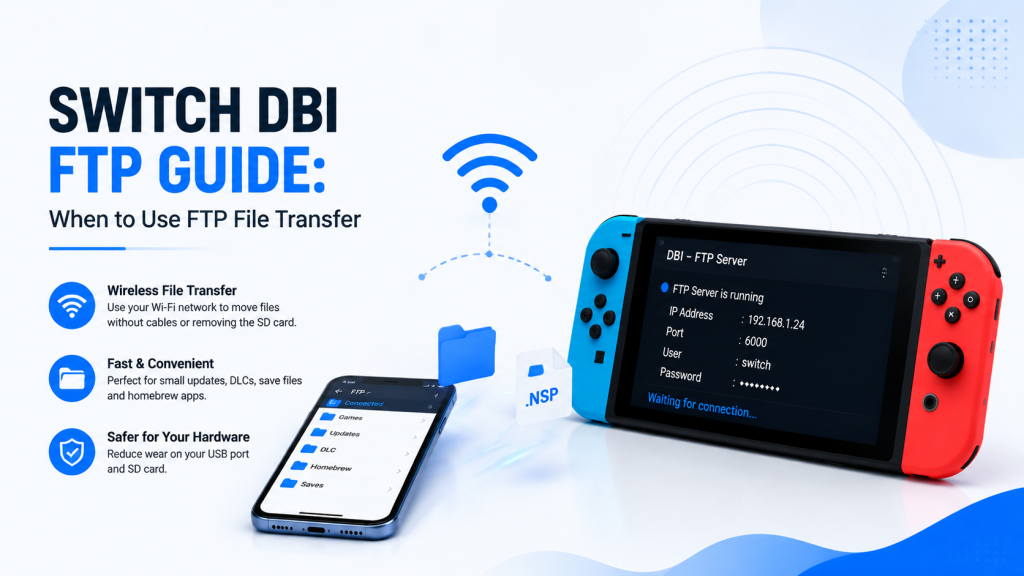
DBI Switch — Complete Guide to Features, Installation, and Use
DBI Switch is a homebrew utility for Nintendo Switch consoles running compatible custom firmware. It combines content installation, file transfer, storage management, and maintenance tools in one application.
This guide explains DBI’s main features, installation requirements, and common uses. It is intended for managing personal backups, homebrew applications, and content you are legally authorized to use.
Overview
DBI provides a menu-based interface for accessing the microSD card, managing installed applications, transferring files from a computer, and checking storage information.
The application supports several transfer and installation methods, including MTP Responder, USB, microSD storage, and compatible external sources.
What DBI Switch Is and Why It’s Used
DBI Switch is a homebrew content-management application. It is commonly used because it allows several important tasks to be completed without switching between multiple separate tools.
Users can browse files, review installed titles, manage updates and DLC, check file integrity, and transfer content between a computer and the Switch. DBI requires a working custom firmware and Homebrew Menu environment.
Primary Use Cases and Benefits
DBI is useful for regular file, installation, and storage-management tasks on a modded Nintendo Switch.
Its main use cases include:
- Installing supported NSP, NSZ, XCI, and XCZ packages.
- Transferring files through MTP or USB.
- Viewing installed games, updates, and DLC.
- Checking microSD and NAND storage usage.
- Moving or removing supported installed content.
- Identifying incomplete or damaged installations.
The main benefit is convenience. DBI places several useful tools in one interface, making content management easier for users who already understand custom firmware, sysNAND, and EmuMMC.
Key Features
DBI combines installation, file transfer, storage management, and content-maintenance tools in one Nintendo Switch homebrew application. It supports both local and PC-based workflows, making it useful for managing legally obtained content and personal backups.
Core Capabilities
DBI’s main capabilities include:
- Installing supported NSP, NSZ, XCI, and XCZ packages.
- Transferring files through MTP or DBIbackend USB mode.
- Installing files stored on a microSD card or external USB drive.
- Viewing installed games, updates, DLC, versions, and storage use.
- Moving supported content between microSD and active NAND storage.
- Checking installed content for errors or missing files.
- Backing up save data through the MTP interface.
- Removing titles, updates, DLC, mods, and incomplete installation data.
DBI also supports selecting multiple files for queued installation, which is useful when managing several packages in one session.
Requirements & Compatibility
DBI requires a Nintendo Switch that can already run homebrew applications through compatible custom firmware, such as Atmosphère. A working Homebrew Menu, reliable microSD card, and sufficient free storage are also required.
For PC transfers, users need a data-capable USB-C cable and a computer with MTP support. The separate DBIbackend method may require additional drivers or PC-side software.
Firmware compatibility depends on the versions of DBI, Atmosphère, and Nintendo Switch system software being used. Recent DBI release notes include ticket-related fixes for HOS 21 and 22, but users should still review the latest Atmosphère and DBI release notes before updating.
DBI can run within CFW on sysNAND or EmuMMC. EmuMMC uses redirected or virtualized NAND storage on the microSD card, while sysNAND uses the console’s physical system environment. Always confirm the active environment before installing, moving, or deleting content.
Supported Console Models and Firmware Versions
DBI does not depend on one specific Nintendo Switch model. It can run on a console that already has compatible custom firmware and access to the Homebrew Menu.
| Switch model | DBI compatibility |
| Original Nintendo Switch | Supported when a working homebrew environment is available |
| Nintendo Switch Lite | Supported only when the console already has compatible custom firmware access |
| Nintendo Switch OLED | Supported only when a compatible homebrew setup is installed |
DBI cannot modify a stock console or provide access to custom firmware on its own. Compatibility depends on the console setup, the current system firmware, the Atmosphère version, and the DBI build.
Recent DBI release notes mention fixes related to Nintendo Switch system versions 21 and 22. Atmosphère 1.11.2 was the latest release listed as of June 16, 2026, but users should always check the latest release notes before updating their console.
Required Software Dependencies and Tools
DBI requires a working custom firmware and Homebrew Menu environment. The application file is placed on the microSD card and launched like other Switch homebrew software.
Required files and tools include:
- A compatible Atmosphère setup
- A working Homebrew Menu
- The official DBI.nro file
- A reliable microSD card
- A computer or microSD card reader
- A data-capable USB-C cable for MTP transfers
- An optional dbi.config file for custom settings
DBI supports MTP, USB, personal HTTP servers, and external USB storage. Separate PC-side software is generally unnecessary for normal MTP use, while the DBI backend method may require its companion application and suitable USB drivers.
Installation
DBI is installed by copying its homebrew files to the switch folder on the microSD card. The console must already be running a compatible custom firmware environment.
Place DBI.nro and its configuration file in:
sdmc:/switch/DBI/
After safely returning the microSD card to the console, boot into the intended sysNAND or EmuMMC environment and open the Homebrew Menu. DBI should appear in the application list and launch to its main menu.
Preparations and Safety Steps Before Installing
Before installing DBI, confirm that the Nintendo Switch already has compatible custom firmware and a working Homebrew Menu. DBI does not modify a stock console or install custom firmware on its own.
Complete these checks first:
- Back up important files from the microSD card and save data.
- Confirm whether sysNAND or EmuMMC is active.
- Check that the microSD card has enough free space.
- Download DBI from a trusted project source.
- Avoid mixing files from different DBI versions.
- Keep the console charged during installation.
Only use DBI Switch FTP guide for homebrew, personal backups, and content you are legally authorized to manage.
Install via Homebrew Manager: Step-by-Step
A compatible homebrew manager can download and place DBI files on the microSD card automatically. The exact menu names may differ depending on the manager being used.
- Boot the Switch into the intended custom firmware environment.
- Open the Homebrew Menu.
- Launch the installed Homebrew application manager.
- Search for DBI in the available applications.
- Review the listed version and source information.
- Select the install or download option.
- Wait until the manager confirms that installation is complete.
- Return to the Homebrew Menu and launch DBI.
Restart the Homebrew Menu if DBI does not appear immediately after installation.
Manual Installation: File Placement and Permissions
For manual installation, connect the microSD card to a computer and open its switch folder. Create a folder named DBI if it is not already present.
Copy the required files to:
sdmc:/switch/DBI/
The folder should normally contain:
- DBI.nro
- dbi.config, when included or required
- Any additional files supplied with the selected release
Standard FAT32 or exFAT microSD cards normally do not require special permission changes. Keep the configuration file beside DBI.nro, safely eject the card, and return it to the Switch.
Verifying a Successful Install
Open the Homebrew Menu and confirm that DBI appears in the application list. Launch it and check that the main interface loads without missing-file or storage errors.
A successful installation should show:
- The DBI main menu.
- Available microSD and NAND storage.
- Access to the Browse SD Card option.
- The expected DBI version.
- A working configuration menu.
- The MTP Responder option without an immediate error.
If DBI does not appear, check the folder path, file names, and downloaded package before reinstalling clean files.
Configuration & Settings
DBI includes built-in settings for installation behavior, MTP access, storage visibility, and interface preferences. Most users can keep the default configuration and change only the options required for their setup.
Recommended Settings for Typical Setups
For normal use, keep the default installation and MTP settings enabled. Confirm that the correct SD and NAND storage locations are visible, and leave advanced options unchanged unless a specific problem requires adjustment.
It is also useful to enable file-integrity checks when installing important packages. This can help identify damaged or incomplete files before they cause installation problems.
Advanced Options and Customizing Behavior
Advanced users can edit dbi.config to adjust storage paths, MTP folders, logging, screen behavior, and installation preferences. The configuration file should remain in the same folder as DBI.nro.
Create a backup before editing advanced settings. Change one option at a time so incorrect values can be identified and reversed easily.
User Guide — How to Use DBI Switch
DBI uses a simple menu interface to browse storage, manage installed content, change settings, and start file transfers. Users should confirm the active sysNAND or EmuMMC environment before performing any important operation.
Starting, Stopping and Basic Operations
Launch DBI through the Homebrew Menu and use the directional controls to navigate. Press A to open or confirm an option and B to return or cancel.
Complete any active installation or transfer before closing DBI. Avoid removing the microSD card, disconnecting USB, or powering off the console while files are being processed.
Common Workflows and Example Commands
For PC transfers, select Run MTP Responder and connect the Switch with a data-capable USB cable. To install from local storage, open Browse SD Card, select the required file, choose the destination, and confirm the installation.
The Browse Installed Applications option can be used to review titles, updates, DLC, storage locations, and file details. Always read the on-screen command hints because button functions may change between menus.
Troubleshooting & Maintenance
Regular maintenance helps prevent DBI launch, transfer, and installation problems. Keep the microSD card healthy, maintain enough free storage, and avoid interrupting active file operations.
Common Errors and Their Fixes
USB communication and transfer errors are commonly linked to a faulty cable, unstable USB port, damaged package, or microSD card problem. Try another data-capable cable, verify the source file, and restart DBI before attempting the operation again.
Errors such as Invalid PFS0 Magic or Invalid NCA Magic may indicate corrupted files or outdated firmware components. Missing content warnings can also indicate file system errors on the microSD card.
Screenshots
Screenshots should show the DBI main menu, configuration screen, MTP Responder folders, installation progress, and the installed-application manager. Each image should focus on one action and hide personal information such as serial numbers, account details, and network addresses.
Releases & Downloads
Official DBI builds are published through the project’s GitHub Releases page. Users should download files from this source and review the available changelog before replacing their current installation.
Where to Get Stable and Nightly Builds
| Build type | Recommended source and use |
| Official release | Download from the official rashevskyv/dbi Releases page. The newest listed build is 902ru, released on June 19, 2026. |
| English official release | The release page identifies DBI 658 as the latest official version containing English. |
| Nightly or experimental build | The official repository does not provide a clearly labeled nightly channel. Experimental or translated builds from other sources should be treated as unofficial and used carefully. |
For most users, an official numbered release is safer than an unofficial experimental build. Back up dbi.config and existing DBI files before changing versions.
Frequently Asked Questions
Is DBI Switch Safe to Use on Nintendo Switch?
DBI is generally safe when downloaded from the official source and used carefully in a compatible custom firmware environment. However, incorrect storage changes, interrupted transfers, or damaged files may cause errors or data loss.
Users should keep backups, confirm whether sysNAND or EmuMMC is active, and avoid unofficial or modified builds with unclear sources.
What Switch Models and Firmware Versions Work With DBI?
DBI can work on original, Lite, and OLED Switch models when they already have a compatible homebrew and custom firmware setup. It does not add homebrew support to an unmodified console.
There is no single permanent firmware compatibility list. Support depends on compatibility with DBI, Atmosphère, Homebrew Menu, and system firmware, so release notes should be checked before updating.
Why Is DBI Switch Not Detecting My Files or Storage Device?
DBI may not detect files because of an unsupported format, corrupted package, incorrect folder, damaged microSD card, or incomplete split archive. USB devices may also fail because of a faulty cable or port.
Check the file, reconnect the storage device, restart DBI, and test another USB cable or port. DBI officially supports NSP, NSZ, XCI, and XCZ files.
How Do I Update DBI Switch Without Losing My Settings?
Back up the existing dbi.config file before updating. Download the required official release, replace the old DBI.nro, and keep the configuration file in sdmc:/switch/DBI/.
If the new version includes major configuration changes, compare the new and old config files before restoring custom values. Keeping a backup makes it easy to return to the previous setup.
Conclusion
DBI Switch provides useful tools for file transfers, installations, storage management, and installed-content maintenance. It works best with a reliable microSD card, compatible custom firmware, and files from trusted sources.
For safer use, keep regular backups, verify the active system environment, and review official DBI and Atmosphère release information before updating.
Latest Post:
- How to Use DBI Installer on Nintendo Switch: Complete Beginner’s Guide
- Is DBI Safe for Nintendo Switch? Risks, Safety Tips, and What to Know
- How to Install DBI on Nintendo Switch: Complete Setup Guide
- Domain Lookup: Check a Domain Before You Use It
- How to Install Switch Games Using DBI: Safe and Legal Guide for Modded Nintendo Switch
