
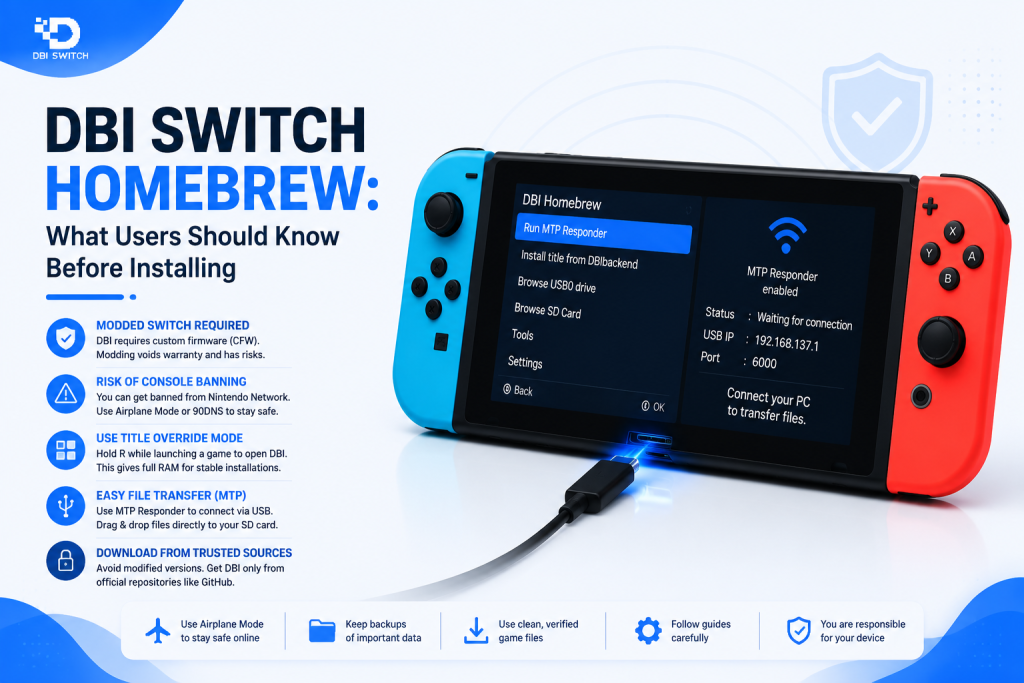
DBI for Nintendo Switch: Complete Guide to Installing Games on a Modded Switch
DBI is a homebrew utility designed for Nintendo Switch systems running compatible custom firmware. It combines game installation, file transfer, storage management, and installed-content tools in one application.
This guide explains how DBI works, when it is useful, and how it fits into a modded Switch setup. It is intended for managing personal backups, homebrew software, and other content you are legally authorized to use.
What DBI Is and When to Use It
DBI allows users to install and manage supported Nintendo Switch content via MTP, USB, microSD storage, and external devices. It can also display installed titles, storage usage, updates, DLC, and file information.
DBI is useful when you need to:
- Install legally obtained game backups, updates, or DLC.
- Transfer files between a PC and Nintendo Switch.
- Manage installed titles and storage locations.
- Check files for incomplete or damaged content.
- Move supported content between NAND and microSD storage.
- Remove unwanted titles, updates, or leftover installation data.
DBI should only be used on a Switch with a working homebrew and custom firmware environment. Before installing content, users should confirm whether they are running sysNAND or EmuMMC and keep backups of important system and microSD data.
Requirements and Preparations
Before using DBI, the Nintendo Switch must already have a working custom firmware and dbi switch homebrew guide Menu setup. Users should also prepare a reliable microSD card, confirm sufficient storage space, and keep backups of important data before beginning an installation.
A data-capable USB-C cable and computer are required when using MTP Responder or other PC-based transfer methods. DBI should only be used to manage personal backups, homebrew applications, and content you are legally authorized to install.
Supported File Types and Formats
DBI supports the main Nintendo Switch installation package formats used for base games, updates, and DLC:
- NSP: A standard installation package commonly used for downloadable titles, updates, and DLC.
- NSZ: A compressed version of an NSP package.
- XCI: A package created from Nintendo Switch game-card content.
- XCZ: A compressed version of an XCI package.
DBI can install NSP, NSZ, XCI, and XCZ files through its SD and NAND installation folders. NSZ and XCZ packages are decompressed during installation, so their final installed size may be much larger than the original compressed file. Users should therefore check available storage before starting.
Hardware/Software Prerequisites (CFW, EmuMMC, microSD, PC)
DBI requires a Nintendo Switch with compatible custom firmware and a working Homebrew Menu. EmuMMC is optional, but users should confirm whether they are running EmuMMC or sysNAND before installing content because DBI works within the currently active environment.
The basic requirements include:
- A Switch capable of running homebrew applications.
- Compatible custom firmware, such as Atmosphère.
- A reliable microSD card with sufficient free space.
- A PC for downloading and transferring files.
- A data-capable USB-C cable for MTP transfers.
- Current backups of important SD card and system data.
DBI supports installation through the microSD card, MTP, USB, external storage, and a personal HTTP server. Users should only prepare personal backups or content they are legally authorized to install.
Preparing and Verifying Game Files (Checksums, Splitting/Compression)
Before installation, confirm that the package is complete and supported by DBI. The application accepts NSP, NSZ, XCI, and XCZ files and can check NCA hashes during installation when Check hash during install is enabled.
| Method | Purpose | Important consideration |
| Checksum verification | Detects damaged or altered files | Compare the file checksum with the publisher-provided value when available |
| File splitting | Allows files larger than 4 GB to be stored on FAT32 | DBI can automatically split large files copied through its normal MTP SD Card folder |
| Compression | Reduces the package’s stored size | NSZ and XCZ files expand during installation and may require much more free space |
A hash mismatch can indicate file damage, conversion, or a transfer problem. If installation fails, verify the source file, USB cable, microSD card, and available storage before trying again.
Installing DBI on Your Switch
DBI is installed as a standard homebrew application on a Nintendo Switch that already has compatible custom firmware and a working Homebrew Menu. The installation package should always come from the official project repository to reduce the risk of corrupted, outdated, or modified files.
Before copying anything, back up important microSD data and confirm that the selected DBI version matches your language and setup.
Downloading the Correct DBI Build and Verifying Source
Download DBI from the official rashevskyv/dbi GitHub repository or its official Releases section. Avoid third-party download websites, repacked archives, and links shared without clear source information.
The official release page currently notes that newer official builds do not include English. It identifies DBI 658 as the latest official release with English support. Unofficial translated builds are maintained separately and are not the same as original official releases.
Before installing, verify the following:
- The repository owner is listed as rashevskyv.
- The file was downloaded from the official Releases section.
- The selected version includes the language you need.
- The archive contains DBI.nro and any required configuration files.
- The download completes without browser or archive errors.
When checksums are provided with a release, compare them with the downloaded file. A matching checksum helps confirm that the package was not damaged or changed during downloading.
Copying DBI to the Homebrew Folder and Setting Permissions
After downloading and extracting the DBI package, connect the microSD card to your computer. Create a DBI folder inside the existing switch directory, then copy the required files to:
sdmc:/switch/DBI/
The folder should normally contain DBI.nro and dbi.config. The configuration file must remain beside the NRO file so DBI can load and save its settings correctly.
No special file permissions are usually required when copying DBI to a standard FAT32 or exFAT microSD card. Safely eject the card after copying the files, insert it into the Switch, and launch DBI through the Homebrew Menu.
DBI can run in applet mode or application mode. The official documentation states that it is mainly designed for applet mode, although application mode may be useful when additional memory is needed for certain operations.
First Launch Checklist and Basic Configuration
On the first launch, confirm that DBI opens without file or storage errors. The main screen displays available microSD and NAND storage, which helps verify that the active storage locations are being detected correctly.
Complete these basic checks:
- Confirm that the displayed DBI version matches the downloaded build.
- Open Browse SD Card and verify that folders are accessible.
- Check the available SD and NAND storage space.
- Confirm whether the Switch is running sysNAND or EmuMMC.
- Open Configuration and review installation and MTP options.
- Enable event logging when installation or integrity records are needed.
DBI includes a built-in configuration manager, so most settings can be changed through the application without manually editing dbi.config. Default settings are generally suitable for first-time users, while advanced storage, network, and MTP options can be adjusted later when required.
Install Games with DBI Using MTP Responder
DBI’s MTP Responder allows a Nintendo Switch to communicate with a PC through a USB connection. It can transfer and install supported personal backups without removing the microSD card from the console.
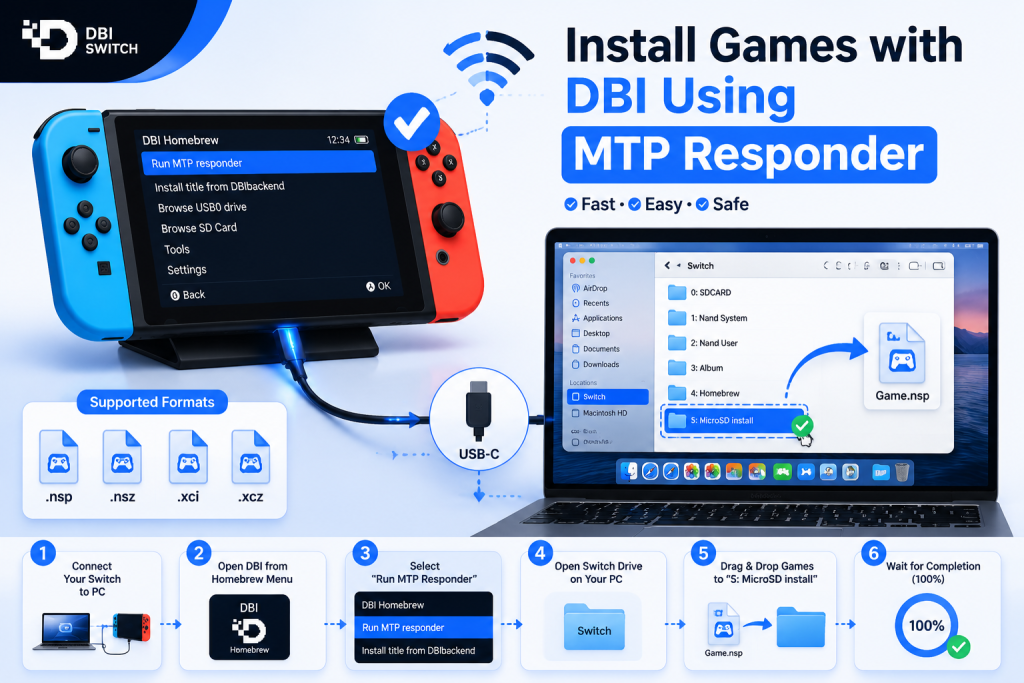
Before starting, confirm that the Switch is running the intended custom firmware environment. DBI performs installation and storage operations inside the environment that is currently active.
Booting into the Correct Environment (CFW/EmuMMC)
Boot the Switch through the configured custom firmware launch method rather than starting the normal stock system. Users with an EmuMMC setup should select the EmuMMC launch option and confirm that it has loaded before opening DBI.
| Environment | Storage behaviour | Recommended use |
| CFW on sysNAND | Uses the console’s physical system environment | Advanced users who intentionally manage content on sysNAND |
| CFW on EmuMMC | Uses an emulated system environment stored or redirected through the microSD card | Users who want a separate environment for homebrew tasks |
Atmosphère describes EmuMMC as a method for redirecting the Switch’s internal eMMC storage to an SD-based environment.
After booting, open System Settings > System and check the displayed system version. Atmosphère setups commonly show an additional custom firmware identifier, while EmuMMC configurations may include an environment indicator. Confirm the intended environment before installing legally obtained content or making storage changes.
Launching Homebrew and Starting DBI’s MTP Responder
Open the Homebrew Menu in the active custom firmware environment, then launch DBI. From the main menu, select Run MTP Responder.
Keep DBI open in MTP mode while connecting the Switch to the computer.
Connecting to a PC and Locating the Switch Device
Connect the Switch to the PC using a data-capable USB-C cable. Avoid charging-only cables and unstable USB hubs.
Open File Explorer and look for the DBI or Nintendo Switch device. Its folders should appear once the MTP connection is active.
Proper Folder to Copy Files Into and Recommended Transfer Practices (Drag & Drop, Batch)
Open the DBI device on your PC and use 5: SD Card install to install supported files to the microSD card. Drag and drop personal backups or legally authorized files into this folder.
For batch installs, copy multiple files together and keep the USB connection active until all transfers finish. Avoid USB hubs, moving the cable, or starting another large transfer at the same time.
Monitoring Installation Progress and Common Success Indicators
DBI displays the current file, transfer speed, installation progress, and possible errors on the Switch screen. Do not disconnect the USB cable or close MTP mode while the process is active.
A successful installation normally shows:
- The progress reaches 100 percent.
- DBI displays a completion message.
- No transfer or integrity errors appear.
- The installed title appears on the Switch HOME Menu.
Install Games with DBI Using microSD (Offline Method)
The offline method installs supported files directly from the microSD card without keeping the Switch connected to a PC. It is useful when USB or MTP is unavailable.
Only use personal backups or content you are legally authorized to install.
Folder Structure on microSD and Where to Place Files (Image)
Create a separate folder on the microSD card for installation files. For example:
sdmc:/Install/
Copy supported NSP, NSZ, XCI, or XCZ files into this folder. The exact folder name is flexible because DBI can browse normal directories on the microSD card.
After inserting the card into the Switch, open DBI, select Browse SD Card, and navigate to the installation folder. Select the required file and choose the appropriate SD or NAND installation target.
Check available storage before starting, and avoid removing the microSD card while installation is in progress.
Running DBI to Scan and Install from microSD
Open DBI via the Homebrew Menu, then select Browse SD Card. Navigate to the folder containing your legally obtained game backup files.
Select the required file, choose the installation target, and start the process. Keep the console powered on and do not remove the microSD card until DBI confirms the installation is complete.
Handling Large Games and Split Archives
Large game files may exceed the 4 GB limit of a FAT32 microSD card. In this case, the file must be split into supported parts before being copied to the card.
Keep all split parts inside the same folder and do not rename or remove individual sections. DBI can properly recognize split files and process them as a single package.
Compressed NSZ and XCZ files may also require more free space during installation, so check the available storage before starting.
Managing Installed Content
DBI provides tools for checking installed games, updates, DLC, and storage locations. These options help users confirm that content was installed correctly and identify incomplete or damaged files.
Verifying Installations and Launching Titles
After installation, return to the Nintendo Switch HOME Menu and confirm that the title appears with the correct name and icon. Open the title to check whether it launches normally.
You can also use Browse Installed Applications in DBI to review:
- Installed version and storage location
- Available updates and DLC
- Missing or incomplete content
- File integrity information
If the title does not launch, check the installation result, available storage, required update, and active sysNAND or EmuMMC environment.
Uninstalling, Moving, and Restoring Content Between sysNAND and EmuMMC
DBI can remove installed titles or move supported content between the microSD card and NAND storage within the currently active environment. Before making changes, confirm whether the Switch is running sysNAND or EmuMMC.
| Environment | What DBI manages |
| sysNAND | Content installed in the console’s physical system environment |
| EmuMMC | Content installed inside the separate emulated environment |
DBI does not directly transfer an installed title from sysNAND to EmuMMC as a single operation. In most cases, users must boot into the intended environment and reinstall their legally obtained content there.
Before uninstalling or moving content, check the destination storage space and avoid interrupting the process.
Save Data Considerations and Backups
Game save data is normally stored separately from installed game files. Uninstalling a title may not automatically remove its save data, but users should still create a backup before deleting, moving, or reinstalling content.
Save data in sysNAND and EmuMMC is usually maintained separately. A save created in one environment may not automatically appear in the other.
Use a compatible save-management tool to export important saves, and keep backup copies on a computer or another secure storage device. Restore saves only to the correct user profile and matching title.
Troubleshooting Common Issues
DBI problems are often caused by USB connection errors, incorrect file placement, unsupported formats, or storage issues. Start with basic checks before changing advanced settings.
DBI Not Detecting Device or Files
When the PC does not detect the Switch, confirm that MTP Responder is active and DBI remains open. Use a data-capable USB-C cable and connect directly to another USB port.
If DBI cannot detect files, check the following:
- The file uses a supported NSP, NSZ, XCI, or XCZ format.
- The file is stored in an accessible microSD folder.
- Split file parts are complete and kept in the same folder.
- The microSD card has no file-system errors.
- The package is not corrupted or incomplete.
Restart DBI and reconnect the device after checking these points. Testing another cable or microSD card can help determine whether the problem is hardware-related or file-related.
Transfer Errors, Incomplete Installs, and Retry Steps
Transfer errors may occur due to an unstable USB connection, insufficient storage, damaged files, or issues with the microSD card. Do not disconnect the Switch while an installation is still running.
Before retrying:
- Restart DBI and reconnect the USB cable.
- Use another data-capable cable or USB port.
- Confirm enough space is available.
- Verify that the package is complete.
- Remove any incomplete installation before starting again.
Retry one file first to confirm that the connection and storage are working correctly.
Error Logs, Permissions, and Reinstalling DBI
DBI displays error messages and installation details that can help identify the problem. Note the exact message before changing files or settings.
On a standard microSD setup, DBI normally does not require special permissions. Make sure DBI.nro and its configuration file are placed inside:
sdmc:/switch/DBI/
If DBI continues to crash or fails to open, delete the existing application files and copy a clean release into the folder. Keep important configuration files backed up before reinstalling.
Tips and Best Practices
Careful use of DBI helps reduce installation errors, storage problems, and accidental data loss. Keep the application, custom firmware, and microSD card in good condition before managing installed content.
Safety, Backups, and Preventing Data Loss
Create backups before installing, moving, deleting, or restoring content. Important backups should be stored on a computer or another device instead of only on the Switch microSD card.
Recommended safety practices include:
- Back up important save data and microSD files.
- Confirm whether sysNAND or EmuMMC is active.
- Check available storage before installing large files.
- Avoid removing the microSD card during an active process.
- Keep the Switch connected to power during long installations.
- Do not disconnect USB while files are transferring.
- Use trusted DBI releases and legally obtained content.
If DBI reports an error, stop and review the message before retrying. Repeatedly forcing a failed installation may leave incomplete data or create additional storage problems.
Performance and Storage Optimization
DBI performance depends on the speed and condition of the microSD card, USB cable, computer port, and source files. A reliable setup can reduce slow transfers, failed installations, and storage errors.
For better performance:
- Use a high-quality microSD card with enough free space.
- Connect the Switch directly to a fast USB port.
- Avoid USB hubs and charging-only cables.
- Install one large package at a time if batch transfers become unstable.
- Remove incomplete files and unused content regularly.
- Keep some free space available for updates and temporary installation data.
Compressed NSZ and XCZ files may be smaller during storage but require more space when installed. Check the final installation size before transferring them.
Screenshots and Visual Walkthrough (Image)
A visual walkthrough can make the DBI Switch installation process easier to follow. Screenshots should clearly show the Homebrew Menu, DBI main interface, MTP Responder option, PC device folders, and installation progress screen.
Each image should focus on one action and highlight the exact menu option or folder users need to select. Avoid including personal account details, serial numbers, network information, or other sensitive data in screenshots.
Frequently Asked Questions
Can DBI Install Games Without a USB Connection?
Yes, DBI can install supported game files directly from the microSD card. Copy the legally obtained NSP, NSZ, XCI, or XCZ file to an accessible folder, open Browse SD Card in DBI, select the package, and choose the installation location. Make sure enough storage space is available before starting.
Should I Install Games to microSD or NAND?
The microSD card is usually the better option because it preserves the limited internal NAND storage. NAND may be useful for selected titles when faster or internal storage is preferred. Always confirm whether sysNAND or EmuMMC is active before selecting NAND, as DBI Switch manages storage for the currently running environment.
Does DBI Work on an Unmodified Nintendo Switch?
No, DBI requires a Nintendo Switch with compatible custom firmware and a working Homebrew Menu. It cannot run as a normal application on a stock console. The firmware, custom firmware, bootloader, and DBI version should remain compatible to prevent launch, transfer, or installation problems.
Conclusion
DBI provides a convenient way to install and manage legally obtained Nintendo Switch content through MTP, USB, or microSD methods. It also helps users review installed titles, manage storage, verify files, and troubleshoot incomplete installations.
For reliable results, use trusted release files, keep regular backups, confirm the active sysNAND or EmuMMC environment, and avoid interrupting transfers. A stable USB connection and a healthy microSD card can prevent most common DBI problems.
Latest Post:
- How to Use DBI Installer on Nintendo Switch: Complete Beginner’s Guide
- Is DBI Safe for Nintendo Switch? Risks, Safety Tips, and What to Know
- How to Install DBI on Nintendo Switch: Complete Setup Guide
- Domain Lookup: Check a Domain Before You Use It
- How to Install Switch Games Using DBI: Safe and Legal Guide for Modded Nintendo Switch
