
DBI Switch
DBI Switch is a homebrew utility designed for Nintendo Switch systems running compatible custom firmware. It provides tools for installing supported content, transferring files, managing storage, and reviewing installed applications.
The application combines several useful management features in one interface. It is mainly intended for experienced users who understand homebrew, sysNAND, EmuMMC, and microSD file management.
Overview
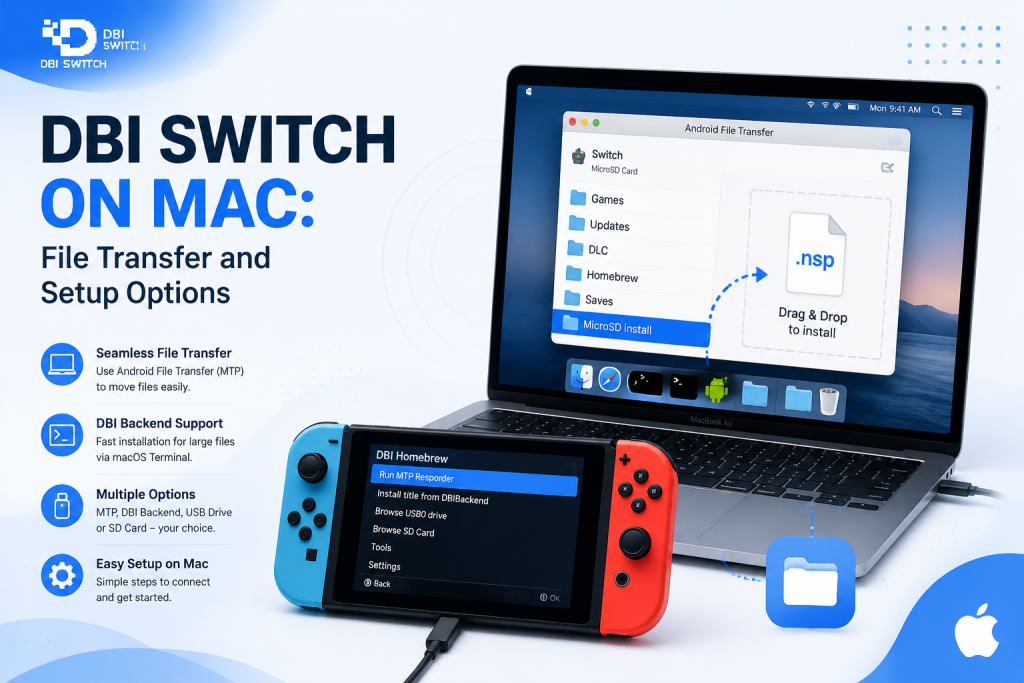
DBI can manage legally obtained game backups, updates, DLC, save data, and other supported files. Users can transfer content through MTP Responder, USB, external storage, or directly from the microSD card.
Its main capabilities include:
- Installing NSP, NSZ, XCI, and XCZ packages.
- Transferring files between the Switch and a PC.
- Viewing and managing installed titles.
- Checking storage usage and file integrity.
- Moving supported content between SD and NAND storage.
- Removing incomplete or unwanted installation data.
DBI requires a working custom firmware and Homebrew Menu setup. Users should create backups and confirm whether sysNAND or EmuMMC is active before making storage or installation changes.
What DBI Switch Does
DBI Switch is a homebrew utility that helps users manage files and installed content on a Nintendo Switch running compatible custom firmware. It combines installation, transfer, storage, and maintenance tools in one application.
DBI can be used to:
- Install supported NSP, NSZ, XCI, and XCZ packages.
- Transfer files between a PC and the Switch.
- View installed games, updates, and DLC.
- Check microSD and NAND storage usage.
- Move or remove supported installed content.
- Review incomplete files and installation errors.
Who Should Use It and Typical Use Cases
DBI is mainly intended for users who already understand Nintendo Switch homebrew, custom firmware, sysNAND, and EmuMMC. It is not designed for an unmodified stock console.
Typical use cases include installing legally obtained personal backups, managing large game libraries, transferring files through MTP, checking installed content, and freeing storage space. Users should create backups and confirm the active system environment before making important changes.
Key Features
DBI combines several Nintendo Switch content-management tools in one homebrew application. Its main features focus on installation, file transfer, storage access, and maintenance within a compatible custom firmware environment.
Core Capabilities and Modules
DBI includes modules for common management tasks, such as:
- Installing supported NSP, NSZ, XCI, and XCZ packages.
- Transferring files between a PC and Switch through MTP.
- Browsing microSD and active NAND storage.
- Viewing installed games, updates, and DLC.
- Moving or removing supported installed content.
- Managing save data and checking file integrity.
- Cleaning incomplete or unnecessary installation data.
These tools make DBI useful for users who want one application for regular Switch file and storage management.
Limitations and Warnings
DBI only works on a Nintendo Switch with compatible custom firmware and a functioning Homebrew Menu. It cannot run as a normal application on an unmodified console.
Users should confirm whether sysNAND or EmuMMC is active before installing or moving content. Selecting the wrong environment or storage target can place files in an unintended location.
Interrupted transfers, corrupted packages, insufficient space, or an unhealthy microSD card may cause failed installations. Keep backups of important files and saves, and only manage personal backups or content you are legally authorized to use.
Compatibility & Requirements
DBI requires a Nintendo Switch that can run homebrew applications through a compatible custom firmware environment. The console, firmware, bootloader, and homebrew tools must work together correctly before DBI can be launched.
Users should also prepare a reliable microSD card and back up important files before installing or managing content.
Supported Hardware and Firmware
DBI can run on Nintendo Switch hardware that already supports a working custom firmware setup. Compatibility depends more on the console’s modification method and software environment than on the model name alone.
The basic requirements include:
- A Nintendo Switch capable of running homebrew.
- Compatible system firmware and custom firmware.
- A working Homebrew Menu.
- A reliable microSD card with sufficient free space.
- An optional data-capable USB-C cable for PC transfers.
DBI cannot add homebrew support to a stock or unsupported console. Firmware should not be updated until compatibility with the installed custom firmware has been confirmed.
Software Dependencies and Required Files
DBI depends on a correctly installed custom firmware environment, commonly Atmosphère, and access to the Homebrew Menu.
The main files and tools include:
- DBI.nro for launching the application.
- A switch/DBI/ folder on the microSD card.
- An optional dbi.config file for custom settings.
- A PC or microSD card reader for transferring files.
- DBIbackend and suitable drivers only when using its USB backend method.
For normal MTP Responder use, separate PC-side backend software is generally unnecessary. Keep DBI files together in the correct folder and avoid mixing files from different releases.
Installation
Installing DBI involves placing its application files in the correct microSD folder and launching it through the Nintendo Switch Homebrew Menu. The console must already have a working custom firmware environment.
Pre-Install Checklist and Backups
Before installation, confirm the following:
- Custom firmware and Homebrew Menu are working.
- The microSD card has enough free space.
- Important save data and microSD files are backed up.
- You know whether the Switch is running sysNAND or EmuMMC.
- The DBI files come from a trusted source.
- The downloaded archive extracts without errors.
Keep backups on a computer or separate storage device rather than only on the Switch microSD card.
Step-by-Step Installation Guide
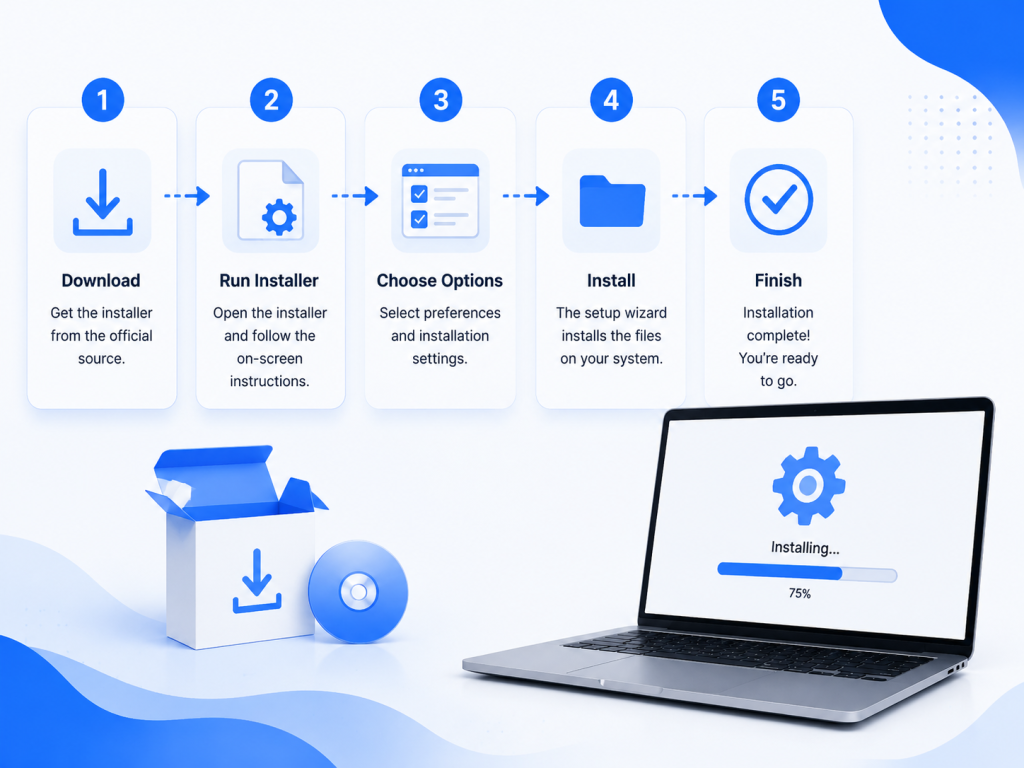
- Download and extract the required DBI release package.
- Connect the Switch microSD card to a computer.
- Open the switch folder on the microSD card.
- Create a folder named DBI if it does not already exist.
- Copy DBI.nro and the configuration file into:
sdmc:/switch/DBI/
- Safely eject the microSD card from the computer.
- Insert the card into the Nintendo Switch.
- Boot into the intended custom firmware environment.
- Open the Homebrew Menu and launch DBI.
Avoid combining files from different DBI releases, as this may cause configuration or launch issues.
Verifying a Successful Install
DBI is installed correctly when it appears in the Homebrew Menu and opens without file or storage errors.
After launching it, confirm that:
- The DBI main menu loads normally.
- The microSD and NAND storage details are visible.
- Browse SD Card opens accessible folders.
- The displayed version matches the installed release.
- MTP Responder starts without immediately showing an error.
If DBI does not appear or fails to launch, check the folder location, replace damaged files, and restart the Homebrew Menu.
User Guide — Basic Usage
DBI uses a menu-based interface that provides access to storage, installed applications, MTP transfers, save data, and configuration options. Most tasks can be completed with the standard Switch controls and the instructions displayed on the screen.
Launching and Navigating DBI Switch
Boot into the intended custom firmware environment and open the Homebrew Menu. Select DBI from the application list to reach its main menu.
Use the directional buttons or analogue stick to move through the menu. Select an option to open it, and use the back button to return to the previous screen. DBI also displays available button actions near the bottom of the interface.
Before managing content, check the displayed SD and NAND storage information and confirm whether sysNAND or EmuMMC is active.
Common Workflows and Examples
DBI supports several regular content-management workflows, including:
- Browsing files stored on the microSD card.
- Starting MTP Responder for PC transfers.
- Installing supported packages from local storage.
- Viewing installed games, updates, and DLC.
- Checking title versions and storage locations.
- Moving or removing supported installed content.
For example, users can open Browse SD Card, locate a legally obtained package, select the intended storage target, and monitor the installation progress. For PC transfers, open Run MTP Responder and connect the Switch with a data-capable USB cable.
Useful Commands and Shortcuts
DBI shows context-sensitive controls depending on the active menu. Common controls include:
- A: Open or confirm the selected option.
- B: Return to the previous screen or cancel.
- X: Select files or start MTP Responder from the main menu.
- Y: Access additional actions where supported.
- Plus or Minus: Open available menu or selection options.
Button functions may change between screens, so users should check the control hints displayed inside DBI before confirming an action.
Advanced Configuration
DBI includes a configuration file that controls installation behaviour, interface options, MTP access, storage visibility, and other advanced functions. Most users can keep the default settings, while experienced users may adjust specific options to suit their workflow.
Config File Options and Examples
The dbi.config file is normally stored in the same folder as DBI.nro:
sdmc:/switch/DBI/dbi.config
Common configuration areas include:
- Installation and file-integrity checking.
- MTP storage folders and visible sections.
- Screen timeout and display behaviour.
- Network or custom storage locations.
- Logging and diagnostic options.
Before editing the configuration file, create a backup of the original version. Change one setting at a time to make it easier to identify and reverse incorrect values.
Customizing Behavior and Performance Tips
DBI performance depends mainly on the microSD card, USB cable, computer port, and condition of the source files. Advanced settings cannot fully compensate for slow or unreliable hardware.
For stable performance, use a reliable microSD card, connect the Switch directly to the PC, and avoid charging-only cables or USB hubs. Keep enough free storage available and process one large installation at a time if batch transfers become unstable.
Users should also avoid enabling unnecessary MTP folders or advanced options. A simple configuration is usually easier to maintain and troubleshoot.
Troubleshooting & Known Issues
DBI problems are commonly caused by incorrect file placement, damaged packages, insufficient storage, USB connection issues, or incompatible homebrew components. Start with basic checks before changing advanced settings.
Common Errors and How to Fix Them
If DBI does not launch, confirm that DBI.nro and its configuration file are stored in:
sdmc:/switch/DBI/
For transfer or installation problems, try these fixes:
- Use another data-capable USB cable or PC port.
- Confirm that enough SD or NAND storage is available.
- Check that the package is complete and supported.
- Restart DBI and reconnect the Switch.
- Test the microSD card for file-system errors.
- Reinstall DBI using clean files from a trusted release.
Avoid interrupting active installations because this may leave incomplete content that must be removed before retrying.
Collecting Logs and Enabling Debug
When an error appears, record the complete message and the action that caused it. This information helps identify whether the issue involves storage, USB communication, package integrity, or configuration.
Useful diagnostic details include:
- DBI version
- Switch firmware and custom firmware versions
- Active sysNAND or EmuMMC environment
- The installation method used
- File format and storage target
- Screenshot or exact text of the error
Enable available logging options in DBI’s configuration when detailed installation records are required. Keep a backup of dbi.config before changing diagnostic or advanced settings.
Frequently Asked Questions
These questions cover DBI safety, firmware compatibility, missing game files, and installing multiple packages.
Is DBI Switch Safe to Install and Use?
DBI is generally safe when downloaded from its official repository and used carefully in a compatible homebrew environment. However, interrupted transfers, damaged files, incorrect storage choices, or accidental removal of content can cause installation problems or data loss.
Keep backups of important files and saves, confirm which sysNAND or EmuMMC is active, and manage only personal backups or legally authorized content.
Which Nintendo Switch Firmware Versions Support DBI?
DBI does not provide a simple fixed list of supported Nintendo Switch firmware versions. Compatibility primarily depends on whether the installed Atmosphère version, Homebrew Menu, and related system components are compatible with the console firmware.
Before updating the Switch, check the latest official Atmosphère release notes and confirm that your complete custom firmware setup is compatible.
Why Is DBI Switch Not Detecting My Game Files?
DBI may not detect files when they use an unsupported format, are stored in an inaccessible folder, are incomplete, or were split incorrectly. DBI supports the installation packages for NSP, NSZ, XCI, and XCZ.
Check the file extension, confirm that every split part is present, and test the microSD card for errors. A corrupted archive or incomplete transfer may require copying the original file again.
Can DBI Install Multiple Game Files at the Same Time?
DBI can process multiple supported packages in a single installation session. Users can select several files or copy a batch of packages into an MTP installation folder.
The files are normally processed through an installation queue rather than all being installed simultaneously. Keep enough storage available and do not disconnect the USB cable or close DBI until the complete batch has finished.
Conclusion
DBI Switch on Mac combines installation, file transfer, storage management, and installed content tools into a single Homebrew application. It supports several package formats and provides flexible workflows through MTP, USB, microSD, external storage, and personal network sources.
For reliable use, download DBI from its official source, keep the custom firmware environment compatible, create regular backups, and verify that the active sysNAND or EmuMMC environment is in use before managing content.
Latest Post:
- How to Use DBI Installer on Nintendo Switch: Complete Beginner’s Guide
- Is DBI Safe for Nintendo Switch? Risks, Safety Tips, and What to Know
- How to Install DBI on Nintendo Switch: Complete Setup Guide
- Domain Lookup: Check a Domain Before You Use It
- How to Install Switch Games Using DBI: Safe and Legal Guide for Modded Nintendo Switch
